Hardware Tokens (for Faculty Members)
Authentication apps and phone numbers (SMS or phone calls) are the standard verification methods for MFA. However, for faculty members who are unable to register any of the verification methods, such as those who do not have smartphones, we offer a device called “hardware token” as an alternative. Please refer to UTokyo Portal (only for faculty members) for details.
Using UTokyo Account Abroad
When signing in to your UTokyo Account from abroad (e.g., during business trips), service availability depends on your verification method.
- Microsoft Authenticator
- You can generally sign in as usual via mobile data or Wi-Fi, provided your smartphone with the Microsoft Authenticator app is connected to the Internet.
- On Android, however, signing in via standard push notifications may fail in countries or regions where communication with Google systems is restricted, as notifications rely on Google services. In such cases, you can still sign in using the offline method: signing in with a 6-digit verification code, provided you have your smartphone.
- You can still sign in even without an Internet connection by signing in with a 6-digit verification code, as long as you have your smartphone.
- Other Authenticator Apps
- You can sign in using the 6-digit code displayed in the app, provided the code can be generated.
- Most authenticator apps work without an Internet connection as long as you have the smartphone with the app installed, depending on the app’s specifications. For example, Google Authenticator, which is introduced on the Initial Setup Procedures for Multi-Factor Authentication (MFA) page, functions offline.
- Phone Number
- This method is available only if your mobile plan supports international roaming at your destination, as you must be able to receive Short Message Service (SMS) messages or voice calls at your registered phone number. Please note that international roaming usually incurs charges for receiving incoming calls and SMS messages.
- Please make sure to add another verification method before leaving the country if your phone service contract does not support international roaming at your destination.
- Fast Identity Online (FIDO) Security Key
- You can sign in as long as you carry your FIDO security key with you.
Before traveling abroad, please check your registered verification methods on the Multi-Factor Authentication (MFA) Settings Page in advance, and update your registration as necessary.
Use the 6-digit Code in Microsoft Authenticator to Sign In
If you are using Microsoft Authenticator for MFA, you can verify your identity by entering the 6-digit code displayed on the app instead of approving the sign-in after receiving a notification on your app (which is the standard method). This method is available even when your phone is offline and is resilient against network failure.
- Click the “Sign in another way” (or “I can’t use my Microsoft Authenticator app right now.”) link in the verification screen that appears after entering your username (10-digit number) and password for the UTokyo Account.
- In the following screen, click “Use a verification code from my mobile app” or “Use a verification code.”
- In the following screen, you will be asked to enter the verification code with the message “Enter the code displayed in the authenticator app on your mobile device.” Obtain the code (6-digit number) from the Microsoft Authenticator App by following steps below and enter the code.
- Launch the Microsoft Authenticator app.
- Select “The University of Tokyo” from the list displayed.
- In the following screen, the verification code (6-digit number) is displayed below the “One-time password code”.
- Enter the code in the sign-in screen and click “Sign in” (or “Verify”) before the countdown on the left in the app screen becomes 0.
* When the countdown reaches 0, the verification code turns into a new one. In this case, enter the new code instead of the old one.
- You can now sign in to your UTokyo Account.
Irregular Behaviors During Verification
Normally, when you sign in with MFA, you first enter your password and then verify your identity with MFA.
However, the following behaviors can happen on occasion.
- You are required to verify your identity with MFA two times in a row.
- You are required to verify your identity with MFA although you were not asked to enter your password (the system skips password inquiry).
- You are not asked to verify your identity with MFA although you entered your password.
These behaviors are due to the connection process between multiple systems concerning the UTokyo Account. In these cases, please follow the instructions on the screen to sign in. We apologize for the inconvenience.
About “we require additional information to verify your account” Error
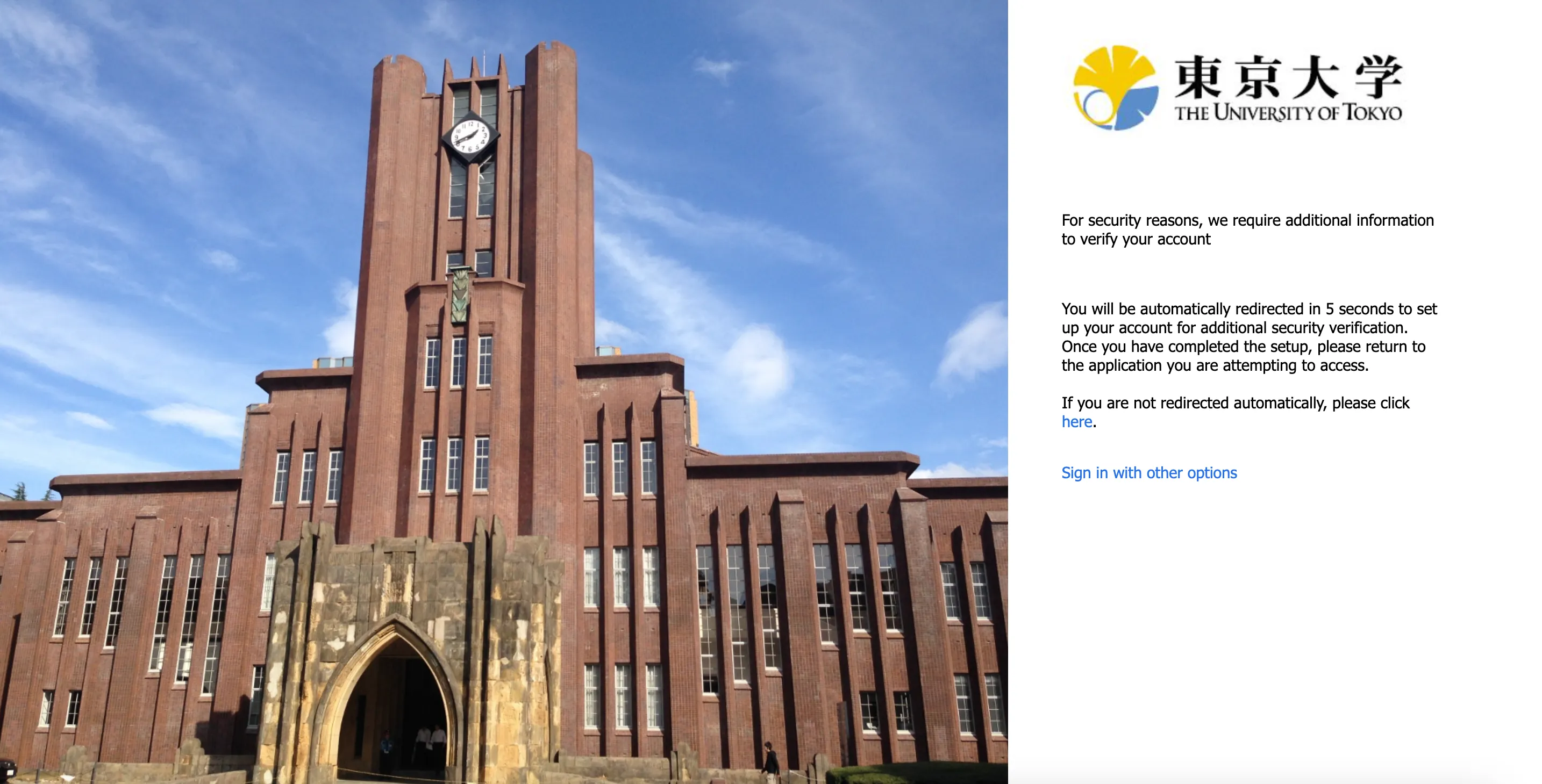
When you sign in to the UTokyo Account, you may receive a “For security reasons, we require additional information to verify your account” error as in the image above depending on the MFA setting. This may occur when you apply for starting your UTokyo Account (Step 4) before setting up the verification methods (Step 1, Step 2) in the initial setup procedures of MFA. Please register the verification methods by following the procedures in “Step 1: Set Up the First Verification Method” and “Step 2: Add Alternative Verification Methods”.